
Manage session tags
Add, rename, recolor, hide, merge, or delete the tags you put on journal entries.
Tags label a session, such as Drills or Tournament. You pick them when you add tags to an entry. Here you control the list.
Open the tag list
Section titled “Open the tag list”Open the menu, tap Settings, then Manage Session Tags.
Add a tag
Section titled “Add a tag”- Tap Add New Tag.
- Enter a name under Tag Name and pick a Tag Color. Preview shows how it will look.
- Tap Add.
Change a tag
Section titled “Change a tag”Tap the … button next to a tag. You can:
- Edit its name and color. Built-in tags can change color but not name.
- Hide it from the entry form. Hidden tags move to Hidden Tags, where you can Show them again.
- Merge it into another tag.
- Delete it (custom tags only).
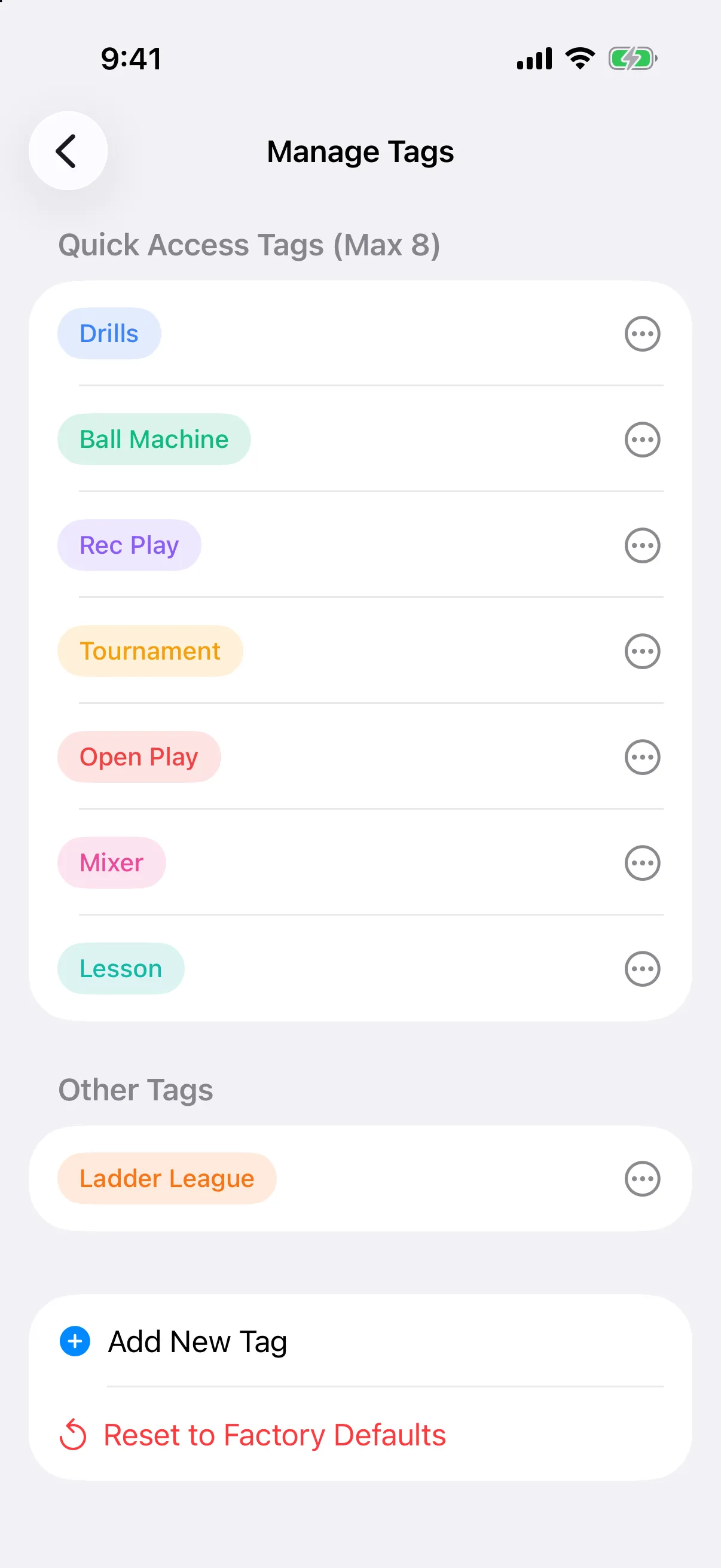
Tags in Quick Access Tags (Max 8) appear first when you add tags to an entry. Use Add to Quick Access and Remove from Quick Access, and Move Up or Move Down to set the order. You can have at most 8.
Tap the three-dot button next to a tag, then choose Edit, Hide or Show, Merge, or Delete. Built-in tags can change color but not name, and cannot be merged or deleted. Hidden tags are listed under HIDDEN TAGS.
Quick access ordering is on iPhone only.
Merge tags
Section titled “Merge tags”Use merge to fix a misspelling or combine similar tags, such as “Dril” into “Drills”.
- Open the tag’s menu and choose Merge.
- Under Merge Into, pick the tag to keep. A summary shows how many entries change.
- Tap Merge, then confirm.
Start over
Section titled “Start over”Tap Reset to Factory Defaults to delete all custom tags and show all built-in tags again. Entries lose their custom tags.