
Read your journal
Understand what each card in your Journal shows and choose what appears on it.
Your Journal lists every entry as a card, newest first, grouped by month. Tap a card to open the full entry.
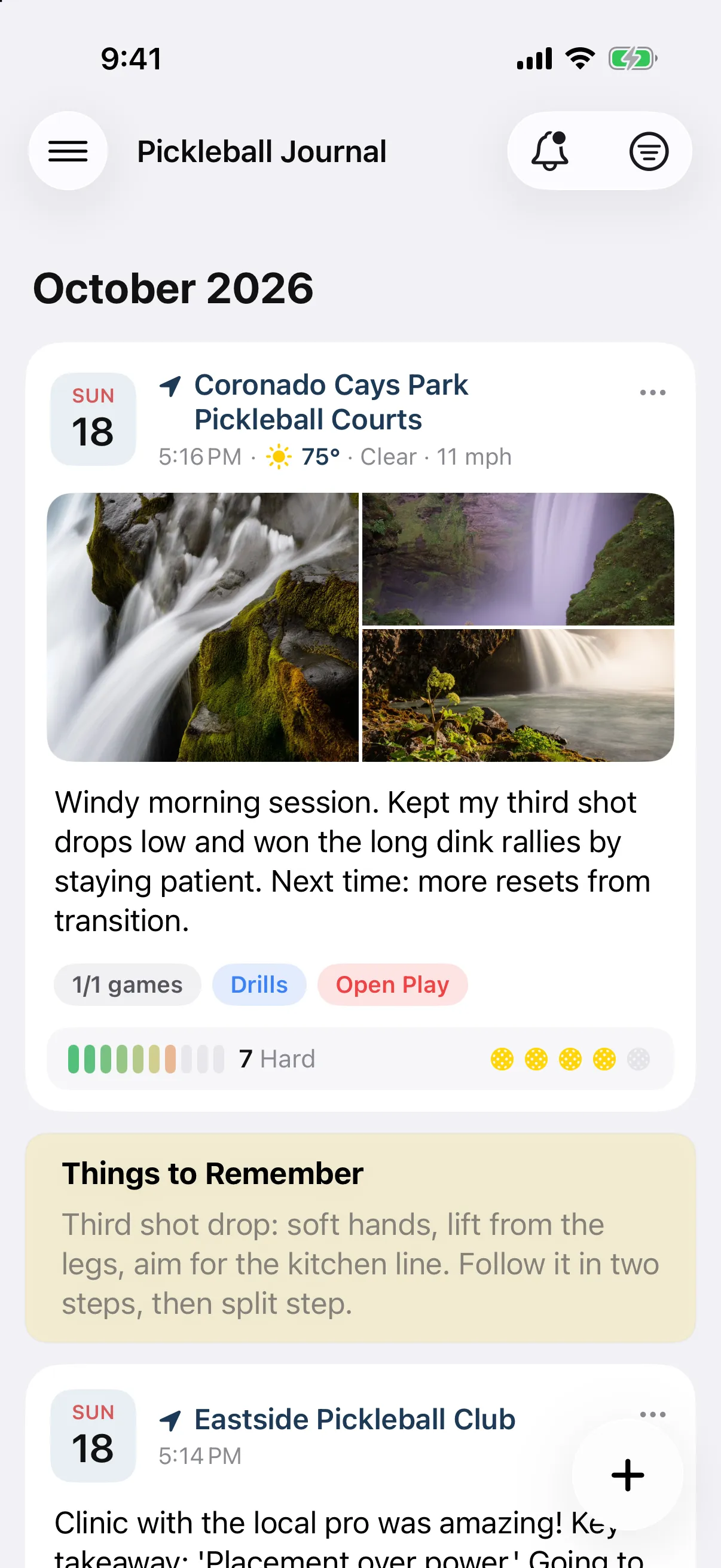
Each card shows, from top to bottom:
- Date tile. The weekday and day of the month.
- Venue. The place you played. If the location has a city, only the venue name shows.
- Time and weather. The time you played. For outdoor sessions with weather on record, the temperature and conditions follow it. Wind shows when it is 10 mph or more.
- Photos. Up to five photos or videos. If there are more, the last one shows how many are left.
- Note. Your note, with a preview of the first link in it.
- Games pill and tags. For example 3/5 games (won out of played), followed by your session tags.
- Workout tiles. Time, energy and heart rate for an attached workout.
- Effort and rating. A 10-segment effort meter with its label, and your session rating in pickleballs.
Cards for Things to Remember and Things to Work On are simpler: a title and your note.
Choose what shows on cards
Section titled “Choose what shows on cards”- Open the menu (☰), then Settings, then Profile.
- Under Pickleball Defaults, turn Show Workout on Journal Cards on or off.
- Turn Show Effort & Rating on Journal Cards on or off.
Both are on by default. They change only the cards. The open entry still shows everything. These two settings stay on this iPhone.
Each card shows the date, your photos (up to five, with a +N for the rest), the location, your note, a games chip such as 3/5 Games, and your tags. Cards for Things to Remember and Things to Work On show a title and your note.
Workouts, effort, ratings and weather appear when you open the entry, not on the card. There is no setting to change what the card shows.