
See your spending by category and over time
Use the Categories and Analytics tabs to see where your pickleball money goes.
Expenses has three tabs: List, Categories, and Analytics. This page covers the last two.
Browse the list by month
Section titled “Browse the list by month”List groups your expenses by month. Pick a range along the top, and Total Spending shows the sum for that range.
Look at one category
Section titled “Look at one category”-
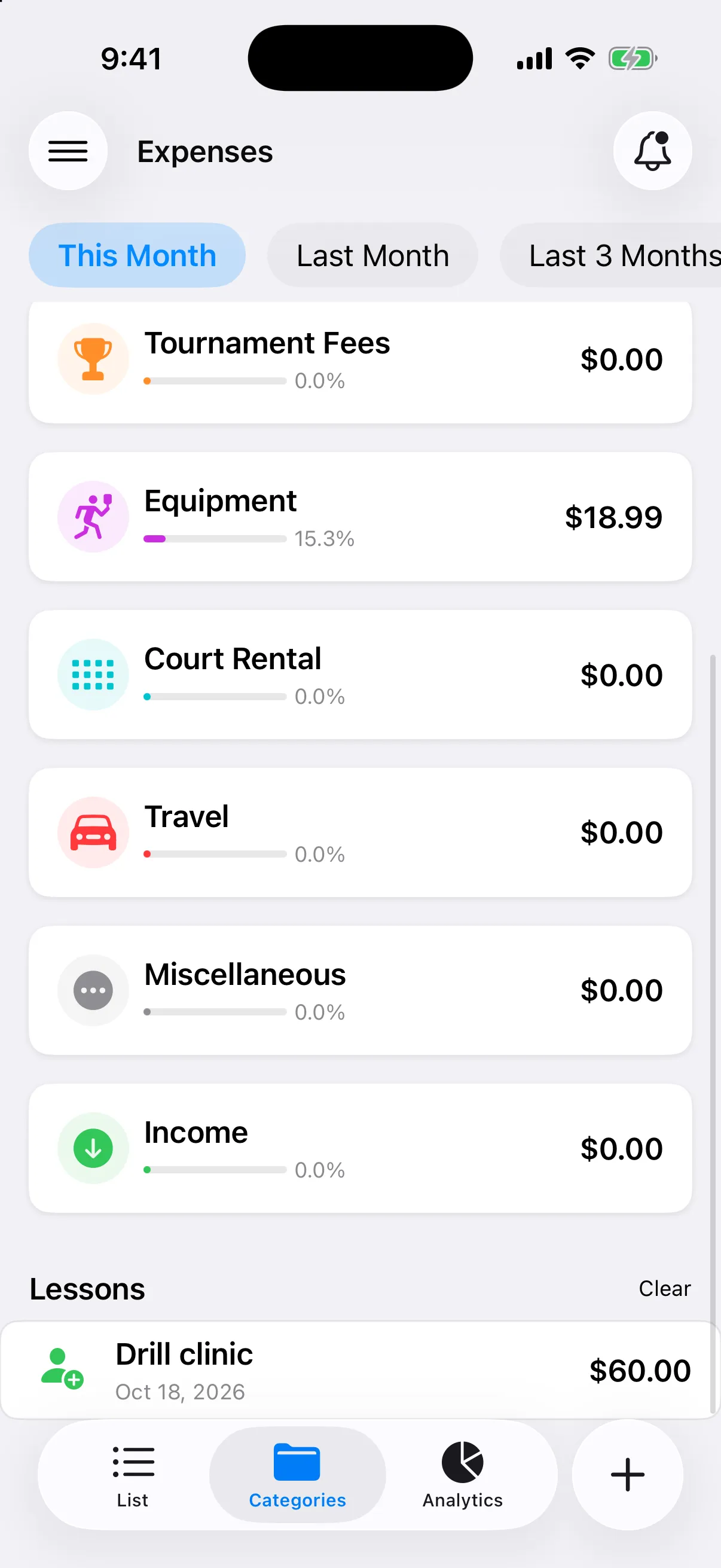
Open Expenses, then the Categories tab.
-
Choose a time range: This Month, Last Month, Last 3 Months, This Year, or All Time.
-
Tap a category to see its expenses for that range.
-
Tap Clear to go back to all categories.
If a category has nothing in the range, you will see a message saying so.
Read the analytics
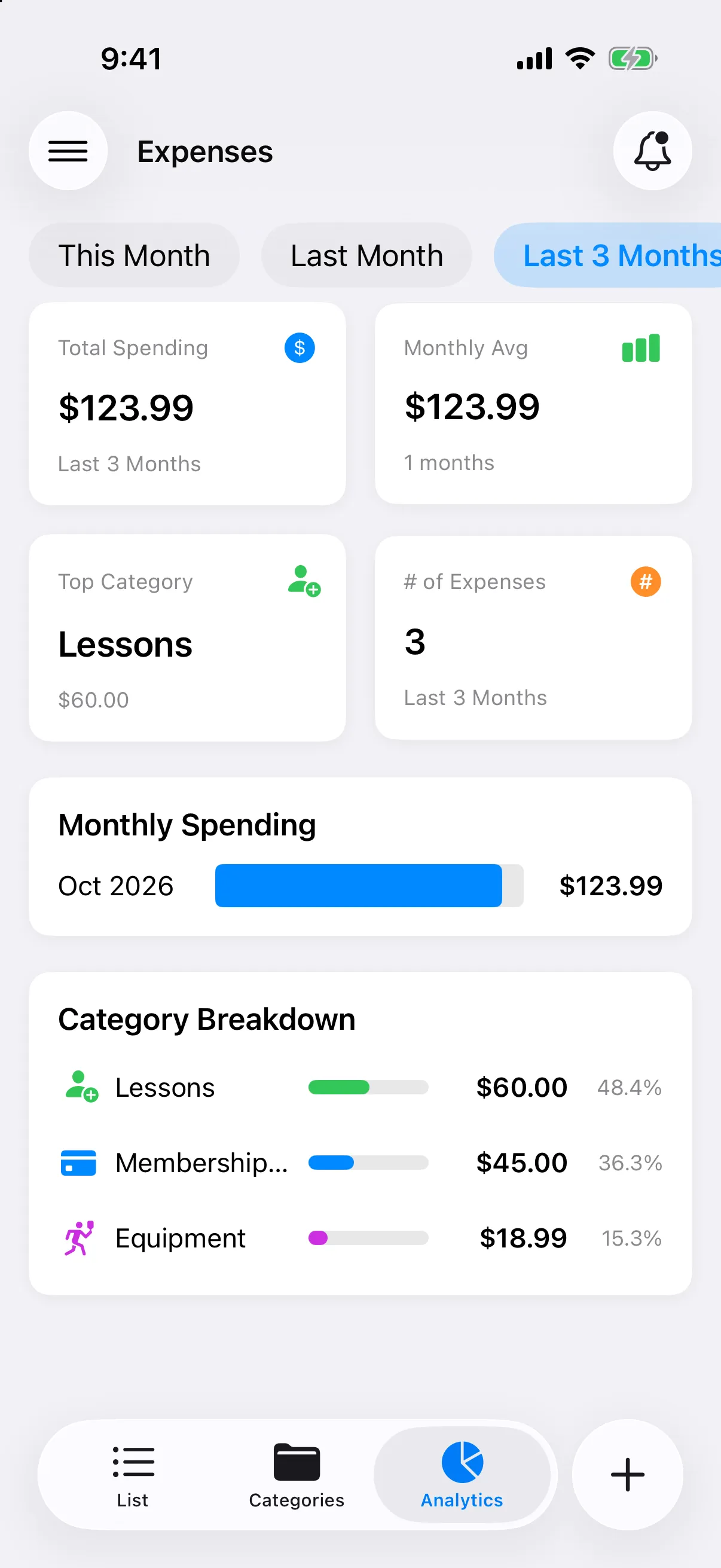
Section titled “Read the analytics”Open the Analytics tab and choose a range: This Month, Last Month, Last 3 Months, Last 6 Months, This Year, or All Time.
- Total Spending, Monthly Avg, Top Category, and # of Expenses summarize the range.
- Monthly Spending shows each month’s total.
- Category Breakdown shows each category’s amount and share.
If you see “No data available for the selected period”, pick a wider range or add an expense.