
Add weather to a session
Mark a location as outdoor and the app fills in the temperature and conditions for your session.
For outdoor sessions, the app looks up the weather at your location and saves it with the entry. You don’t type anything.
Turn on weather for an entry
Section titled “Turn on weather for an entry”-
In your entry, set the Location. Pick a place from the search suggestions so the app knows where it is.
-
Tap the gear button beside the location to open Location Settings.
-
Switch Environment to Outdoor.
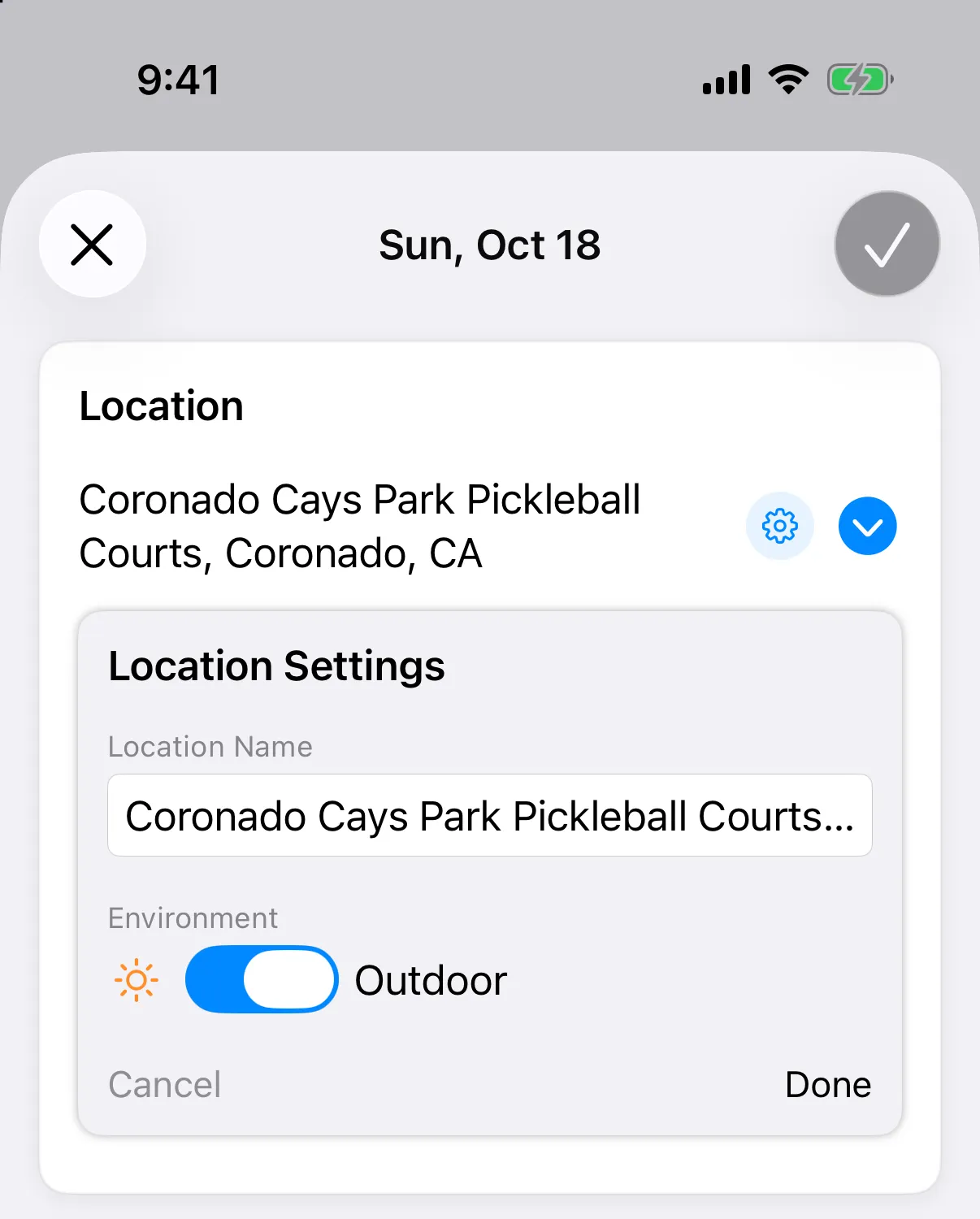
-
Tap Done.
-
Tap Save (✓ on iPhone).
The app looks up the weather while you finish the entry. It shows on your journal card after you save.
When the weather is looked up
Section titled “When the weather is looked up”- For a session in the past, you get the weather around the time you set.
- For later today, you get the current weather.
- For a future day, there is no weather.
If the weather is still loading when you tap Save, the app waits a few seconds, then saves anyway. An entry never fails to save because of weather.
See it later
Section titled “See it later”Open the entry to see Weather Conditions: temperature, condition, humidity, and wind. If nothing could be found, it says Weather data not available.
Apple Weather is shown as the source wherever weather appears.
Weather missing? See Weather not showing.