
Track how long you have had equipment
Filter your gear by type and status, and read an item's lifecycle to see when to replace it.
Every item keeps a timeline: when you bought it, how long it has been in use, and every status change. Use it to decide when a paddle or pair of shoes is due for replacement.
Find an item
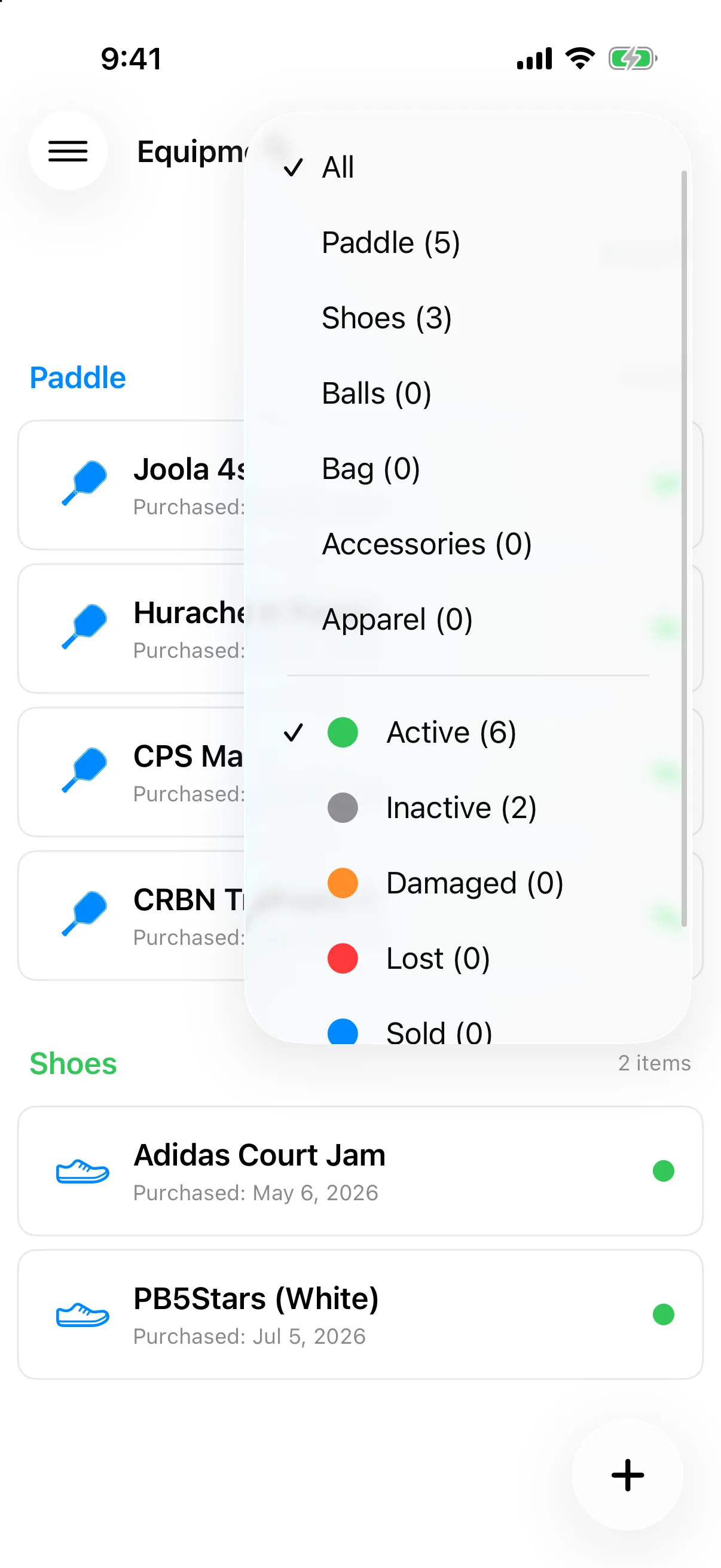
Section titled “Find an item”Filter the Equipment list by type and by status. On iPhone, tap the filter button at the top right. On Android, use the two menus at the top, Type on the left and Status on the right.
- Type: All, Paddle, Shoes, Balls, Bag, Accessories, or Apparel. On iPhone, each type shows how many items you have.
- Status: Active, Inactive, Damaged, Lost, Sold, or Donated.
The list opens on Active. To see retired gear, change the status filter. Tap an item to open Equipment Details.
Read the lifecycle
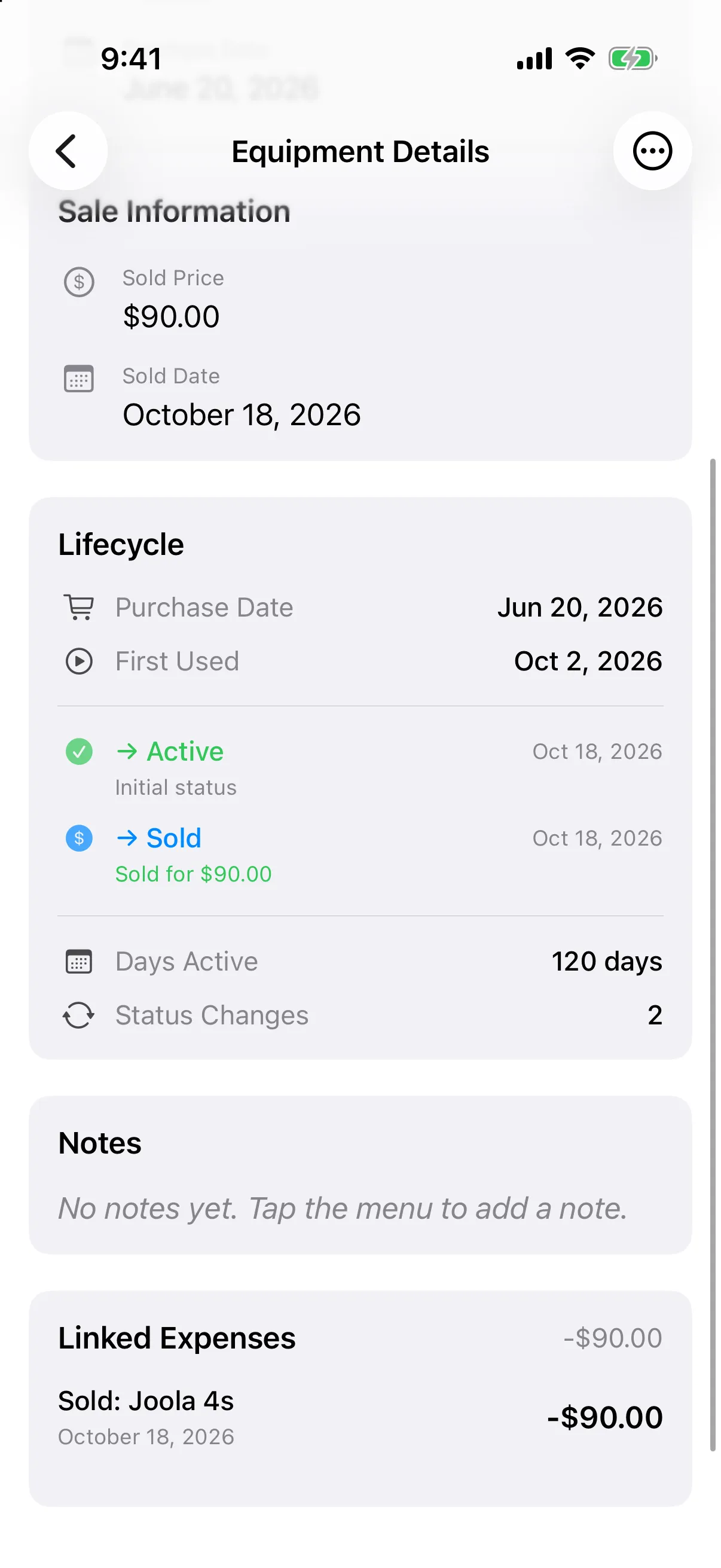
Section titled “Read the lifecycle”Scroll to Lifecycle on the item’s page. It shows:
- Purchase Date, or Added to Inventory if you did not enter one.
- First Used, the first session the item appeared in. This shows for paddles and shoes on iPhone.
- Each status change, with its date and the reason you gave.
- Days Active, counted from the start until today, or until you retired it.
- Status Changes, how many times the status has changed.
Add a note
Section titled “Add a note”Notes are a good place for “restrung” or “new grip”.
- Open the item.
- Tap the … menu at the top right, then Add Note.
- Type your note and tap Save.
To remove a note, tap the trash button on the note, then confirm.
See what you spent
Section titled “See what you spent”The Linked Expenses card on the item lists any expenses tied to it, with a total. You can create or delete the expense record there. See Add an expense.