
Manage locations
Merge duplicate location names and clear your recent locations list.
Every place you type into an entry is saved. If you spelled one two ways, “Riverside Courts” and “Riverside Ct”, merge them so your history and stats line up.
Open the list
Section titled “Open the list”Open the menu, tap Settings, then Manage Locations. Each place shows how many games were logged there. Use the search box to find one.
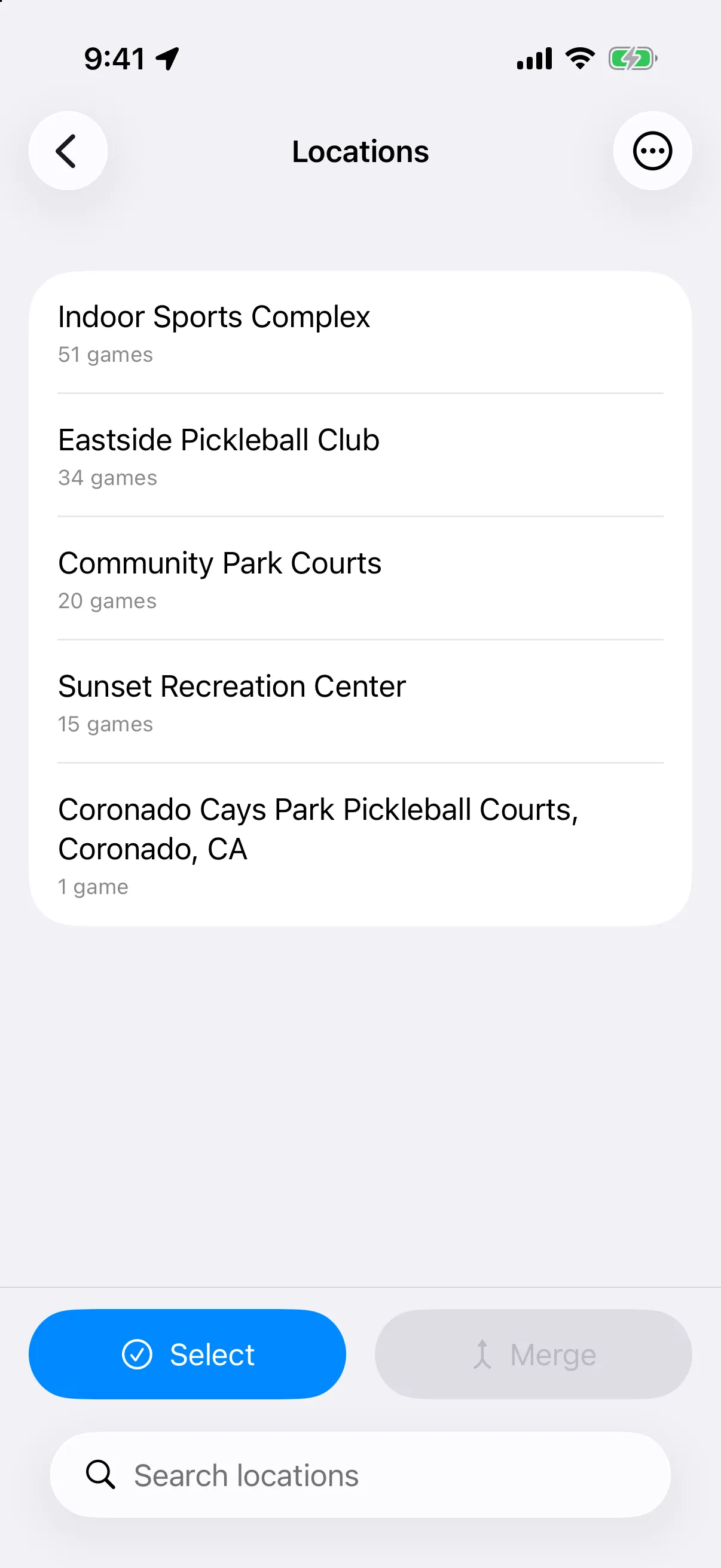
Merge locations
Section titled “Merge locations”-
Tap Select.
-
Tap two or more locations to select them. The button shows the count, such as Merge (2).
-
Tap Merge.
-
Choose the name to keep.
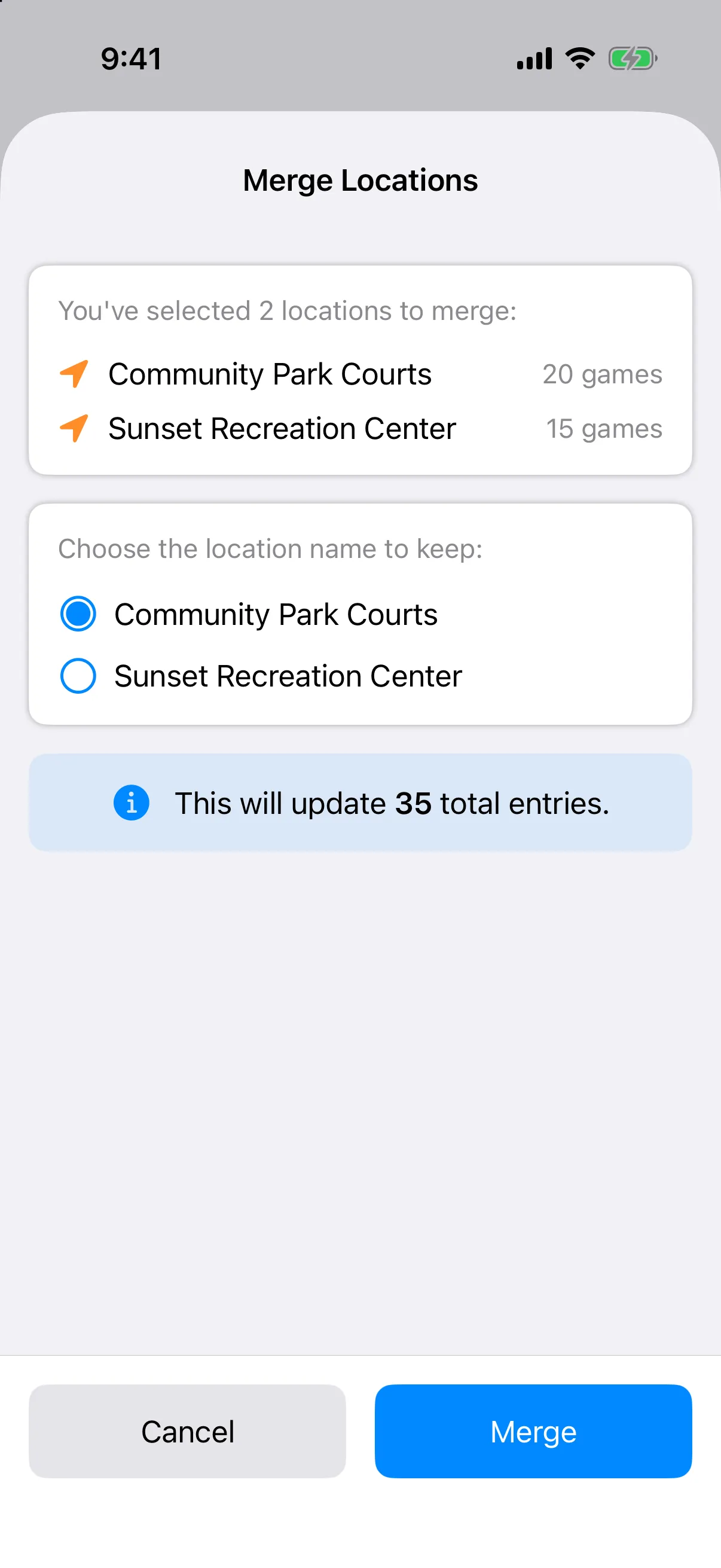
-
Tap Merge to confirm. The sheet shows how many entries will change.
Tap Cancel to leave selection mode without merging.
Clear recent locations
Section titled “Clear recent locations”The recent locations list is what you see when you pick a place on a new entry. To empty it, tap the three-dot menu at the top right, then Clear Recent Locations, then Clear. Your existing entries are not changed.